Dash launcher for Windows
Dash is a fast, predictable keyboard launcher for Windows. Your apps, files, folders and websites are a few letters away, and the same thing opens every time.
Project maintained by CalemYoung Hosted on GitHub Pages — Theme by mattgraham

Dash is a fast, predictable keyboard launcher for Windows.
Your apps, files, folders and websites are a few letters away, and the same thing opens every time.




Features
- Instant access: Open Dash from anywhere with a global hotkey:
Alt+Space(configure in settings). - Flexible commands: Launch applications, files, folders, websites, Store apps and Windows Settings pages from one search box, with optional arguments and a start-in folder for apps.
- Aliases: Add the terms you naturally type, so
ghcan open GitHub andmailyour inbox. - Site search: Put
{query}in a website’s address andgh dashsearches it, whileghon its own still opens the site. - Groups: One command that opens several others, in order, so a project’s apps, folders and tabs start together.
- Quick calculations: Work out sums like
12*8,200+15%orsqrt(2)where you type; Enter copies the answer. - Already open? Switch to it: Opening an app that is running brings its window forward rather than starting a second copy.
- More than open: Right-click a result (or use the keys below) to run it as administrator, open its folder, copy its path or open a new copy.
- Add from anywhere: Copy a file or folder in Explorer and press
Ctrl+Vin Dash, drop a file, shortcut or link on it, or turn on “Add to Dash” in File Explorer’s right-click menu, to make it a command. Type something that matches nothing andCtrl+Nadds it, with what you typed already filled in. - Icons you pick: Every command gets one on its own, and you can swap in a library glyph or your own image, recolor it, or go back to the one Dash found.
- Take it with you: Export commands to a portable file and import them on another PC, icons and all.
- Made to fit: Light, dark or system theme, size, hotkeys, the display Dash opens on, the browser websites use, the web search engine, text sizes, the clock and the update check are all settings.
Why another launcher?
Dash came out of using launchers that index everything on the machine. They lagged while typing, and being non-deterministic can mean searching for the correct result in a list. With Dash you only get what you expect.
Dash does less on purpose:
- Only your commands. Nothing is indexed. The list holds what you added, so there is nothing in the results you don’t care about. A one-off scan can import your installed programs as a starting point, but you choose what stays.
- Predictable matching. Results are prefix matches on names and aliases,
followed by names with a later word that starts with what you typed (so
codefinds Visual Studio Code). The same letters always narrow to the same commands, an exact name or alias always comes first. - Nothing between you and the command. simply open, type and Enter.
If you want a launcher that acts a search tool across all your files, there are many good options (flow launcher, everything, powertoys). Dash is for those who want a simple deterministic launcher containing only the commands you set.
See Dash in action
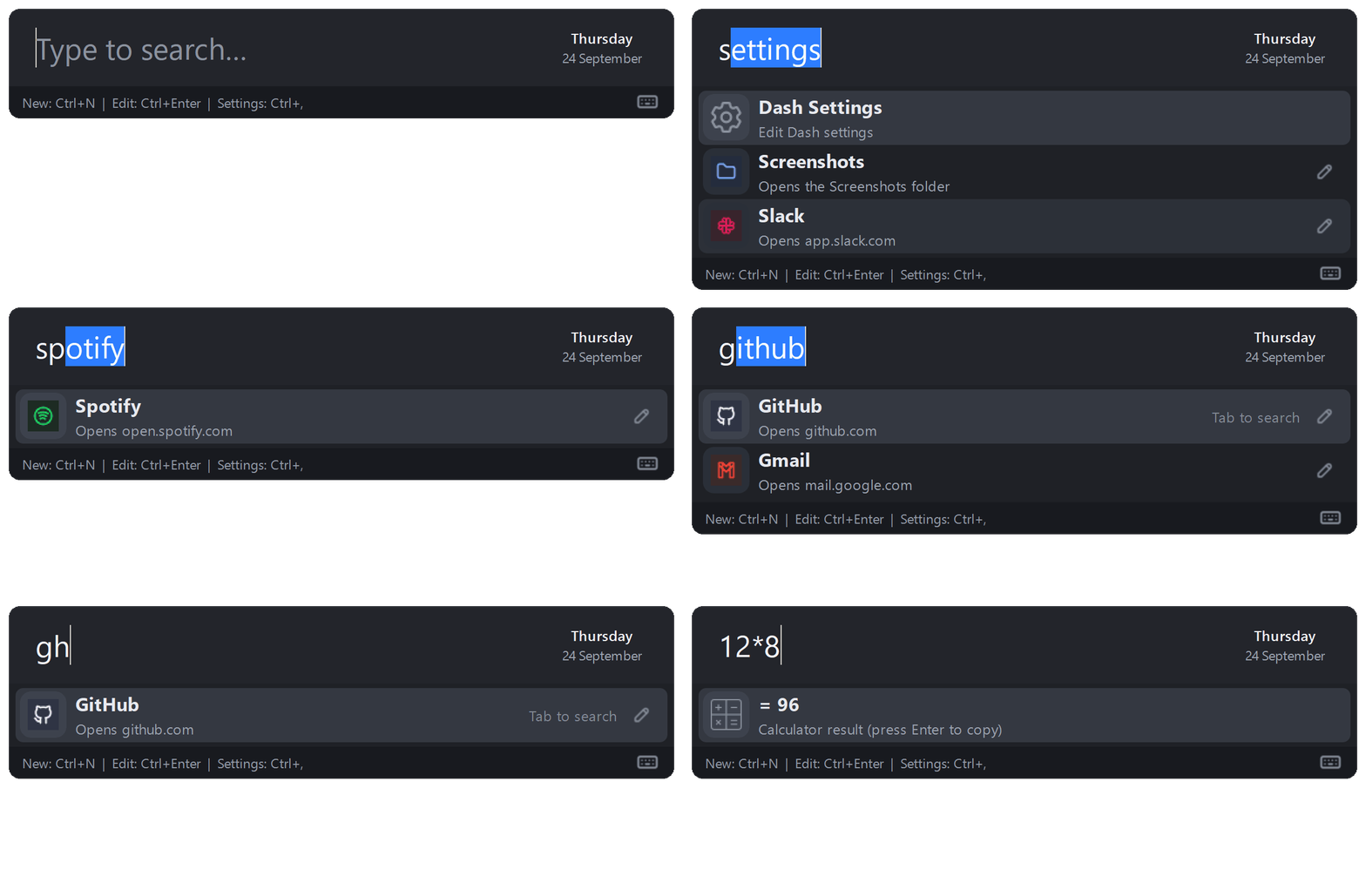
Search and launch
Type a few letters and the name completes inline.
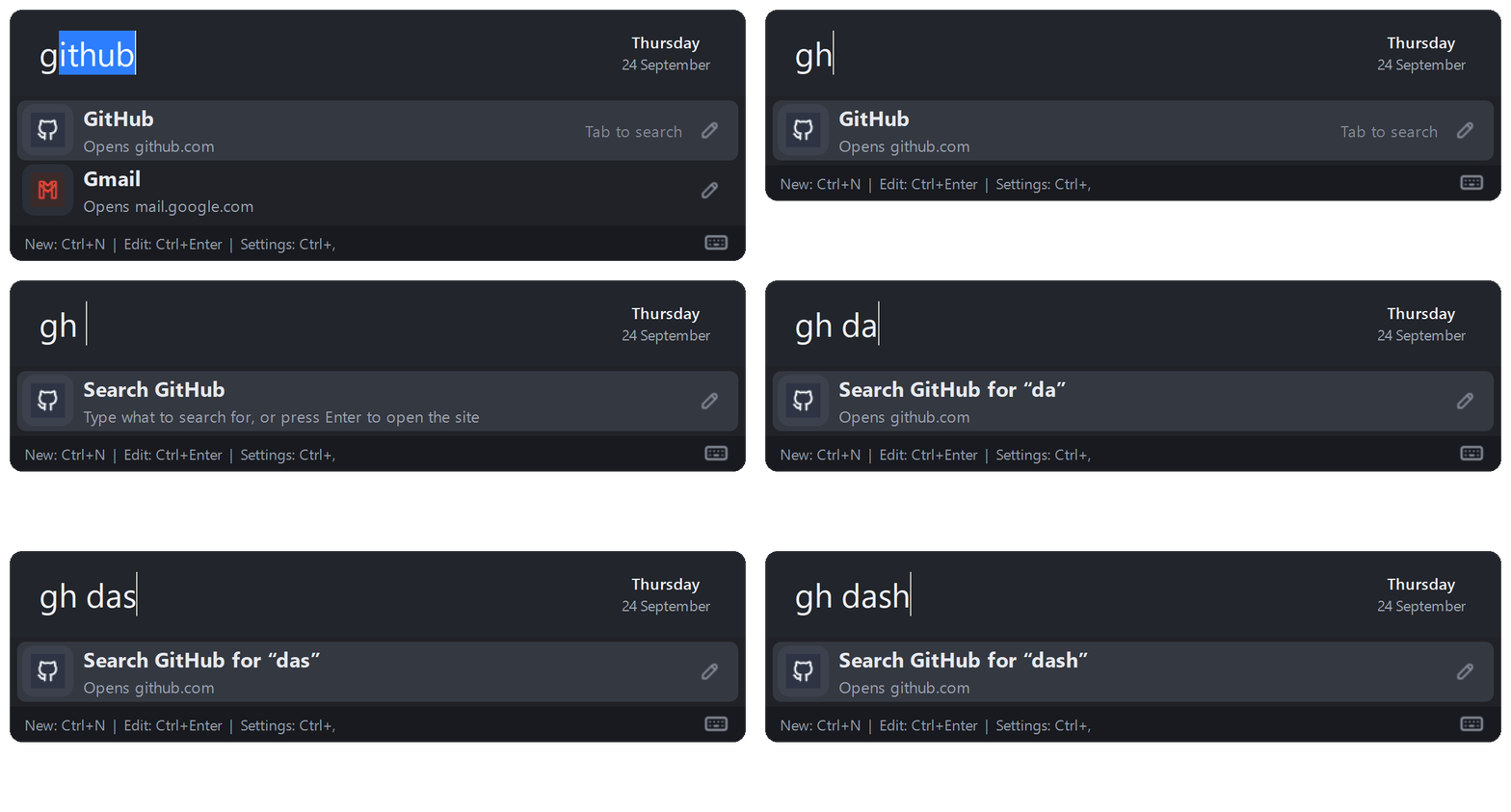
Search a website from the search box
Give a website command an address with {query} in it and its name becomes a
keyword: the name on its own opens the site, a space searches it.
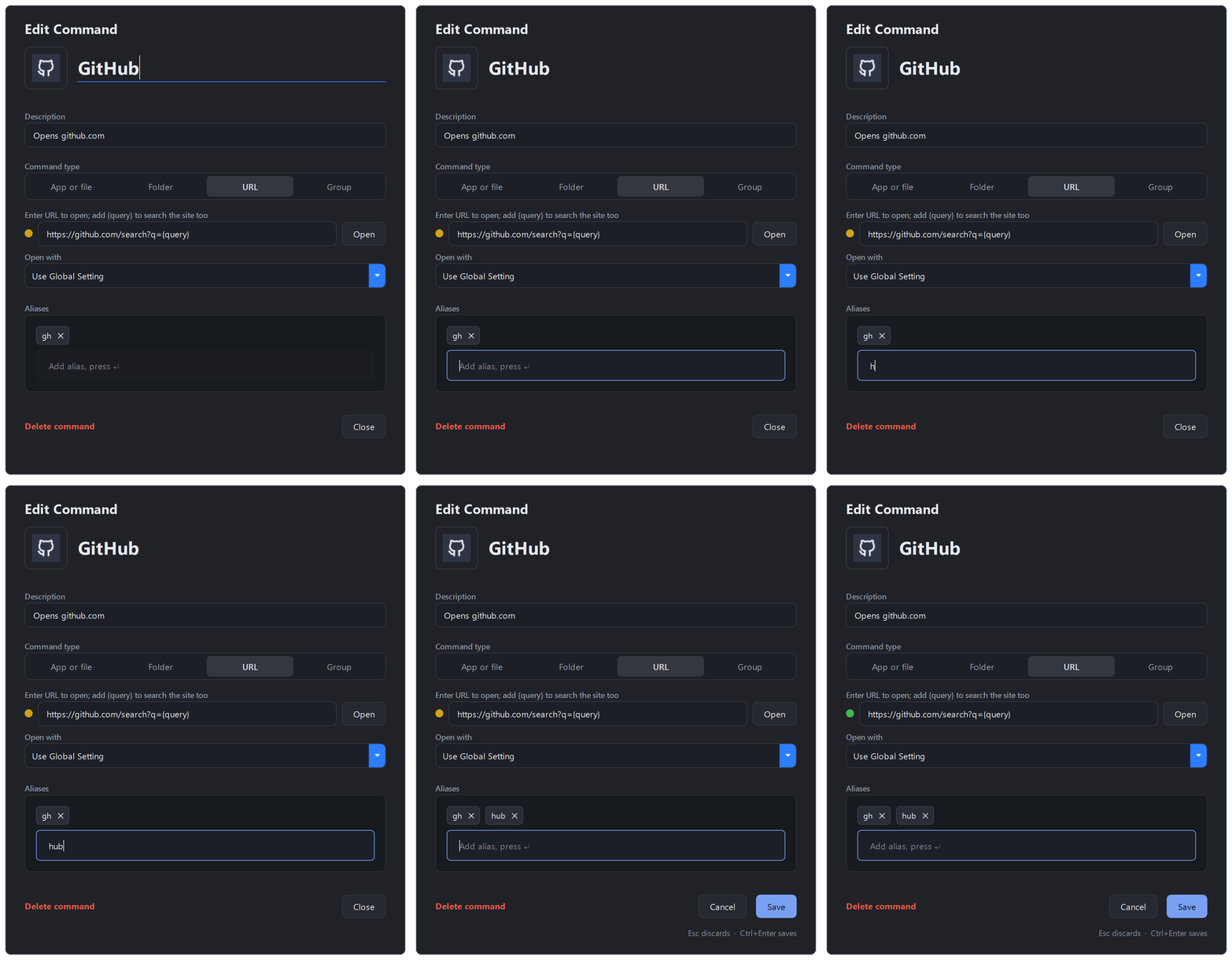
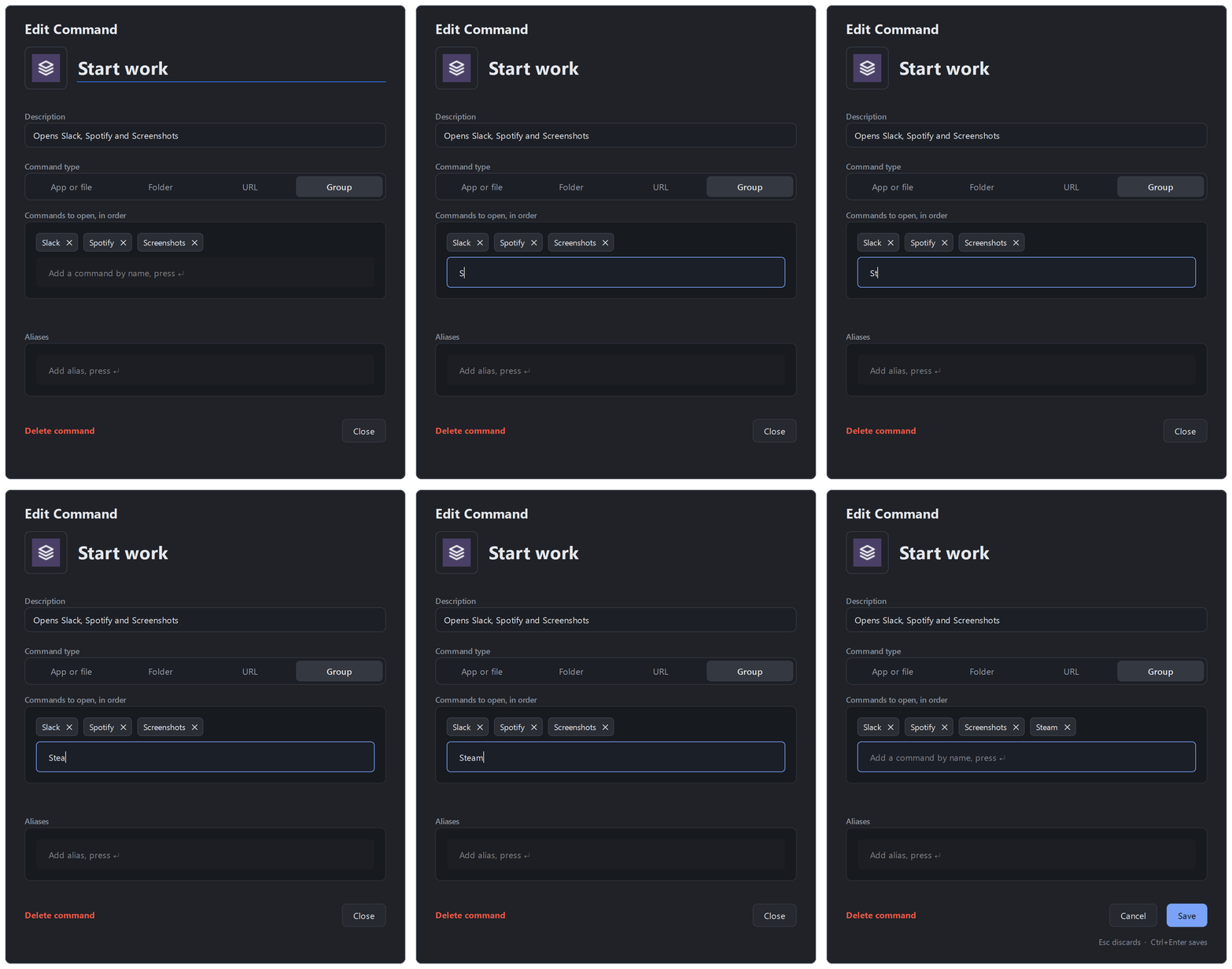
Edit a command, or build a group
Press Ctrl+Enter on a result to edit it in place: name, description, type, target, browser, aliases and icon. A group is edited the same way, except its targets are other commands, and it opens them in the order they are listed.
Keys
| Key | What it does |
|---|---|
Alt+Space |
Open Dash from anywhere |
Type, then Enter |
Open the selected command |
↑ ↓ |
Move through the results; the search box completes to the selected one |
Tab |
Fill in the selected command’s name or alias; a search keyword also gets its space, ready for the search text |
Ctrl+Enter |
Edit the selected command |
Shift+Enter |
Open a new copy, even if the app is already open |
Ctrl+Shift+Enter |
Run the selected app as administrator |
Alt+Enter |
Open the folder that holds the selected command |
Right-click, or the Menu key |
More actions for the selected result |
Ctrl+N |
Add a new command, starting from what you typed |
Ctrl+, |
Open Settings |
Esc |
Close Dash |
The hotkey and the three Ctrl shortcuts are configurable under Settings.
The keyboard icon at the bottom right of the launcher lists every key: hover
over it, or click it.
Beyond opening things
- Nothing matches? Press
Ctrl+Nto add what you typed as a new command, already filled in;Enterdoes nothing, so a mistyped name never opens the editor by accident. Turn on “Web search unknown commands” in Settings to also offer a web search for it, first in the list. - Add to Dash from File Explorer. An optional “Add to Dash” item in the right-click menu of files, folders and shortcuts opens the new-command editor with that item filled in. It is off by default: tick it in the installer or turn it on under Settings. On Windows 11 it is under “Show more options”.
- Groups carry on. A target that has been deleted or will not open is reported when the group finishes, rather than stopping the ones after it.
- Switch instead of relaunch. If an app’s window is already open, Dash brings it forward rather than starting it again. Turn it off under Settings if you would rather always start a fresh copy.
- Icons. Every command gets an icon without you doing anything: the app’s own icon, the site’s favicon, or a default for its kind. Click the icon in the editor to replace it with one of the 5,000-odd Tabler glyphs or an image from disk, and recolor either. “Use default icon” drops yours and goes back to the one Dash found.
- Usage history. Dash counts how often you open each command so “most used first” can order the results. Show the counts, or clear the history, under Settings.
- Move your commands. Export any selection of commands to a portable file
and import it elsewhere. Paths under your home folder travel as
~, and custom icons go with them.
Install
With winget (once the package is listed in the winget catalog):
winget install --id CalemYoung.Dash -e
Or by hand:
- Download
DashSetup-<version>.exefrom the Releases page. - Run the installer and choose whether Dash should create a desktop shortcut, start when you sign in, or add “Add to Dash” to File Explorer’s right-click menu.
- Press
Alt+Spaceto open Dash.
Until you have added a command, opening Dash shows two rows: “Find recommended
commands”, and the Settings command beneath it. The scan offers your installed
programs and Store apps, common Windows tools, the Windows Settings pages
people actually open, the folders in Explorer’s Quick Access and the bookmarks
bar of any browser it finds. It also offers the websites most people want,
Google, YouTube, Gmail, Maps, Wikipedia and the rest, with their search links
already filled in, so g opens Google and g dash searches it.
They arrive on a tab each, for apps and tools, folders, websites and Windows
Settings, with a filter box, so you can go through them a kind at a time. The
pencil on a row opens it in the editor first, to rename it or change its icon
before it is added. Programs you have opened recently start ticked, and each
comes with short aliases you can edit, so word finds Microsoft Word and vsc
finds Visual Studio Code. Nothing is added until you choose it, and you can
run the scan again any time from Settings.
To tidy up later, open Settings and choose “Manage Commands…” to see, edit or delete every command at once.
Settings opens from the launcher: press Ctrl+,, or type “settings”. The
system tray menu can also open Dash and Settings, and holds the app itself:
the install, config and log folders, the update check, About and Quit. Dash stores your configuration in
%APPDATA%\Dash, so upgrades keep your settings and commands.
Starting Dash from the Start Menu or a shortcut opens the search bar, and if
Dash is already running it brings up the existing copy rather than a second
one. Only the start-at-sign-in entry starts Dash silently in the tray; it
passes --startup to do so.
Dash checks GitHub for a new release once each time it starts and shows a single tray notification if there is one. Nothing is installed until you choose “Install and Restart”, at which point the installer is downloaded, verified against the release’s SHA-256 checksum, and run. Turn off “Check updates at startup” in Settings to stop the check, or use “Check for Updates…” in the tray menu at any time.
If Dash can’t use its hotkey because another app already has it, a tray notification says so; choose a different key under Settings.
Privacy
Dash has no telemetry. Your commands, settings and usage counts stay in
%APPDATA%\Dash. It goes online only to check for updates, to fetch website
icons, and when you open a website or search the web. Both the update check
and icon downloads can be turned off in Settings. PRIVACY.md
lists every request.
Troubleshooting
Dash keeps a log at %APPDATA%\Dash\logs\dash.log; “Open Log Folder” in
the tray menu takes you there. Please attach it when you
report a bug. If a
settings or commands file is damaged, Dash starts anyway, keeps the damaged
file beside the original with .bad on the end, and tells you.
What changed in each release: see CHANGELOG.md.
Development
Dash requires Windows and Python 3.11 or later. To run it from source:
py -3.11 -m venv .venv
.\.venv\Scripts\Activate.ps1
python -m pip install --upgrade pip
python -m pip install -r requirements-dev.txt
python dash.py
Run the tests with python -m pytest. See CONTRIBUTING.md
for more.
Build the Windows installer
Install [Inno Setup 6](https://jrsoftware.org/isinfo.php), then run: ```powershell .\.venv\Scripts\python.exe build\scripts\build_installer.py ``` The build reads its version from `build/installer/version.txt` and writes the installer to `dist/DashSetup-
Publish a GitHub release
Releases are built on GitHub's Windows runner. The workflow compiles the PyInstaller bundle with Inno Setup, verifies the installer, and attaches it to the GitHub Release. `build/installer/version.txt` is the only place the version is stored; the build stamps it into the exe and installer. 1. Update `build/installer/version.txt` to the intended version, such as `2.1.0`, and commit it. 2. Create and push a matching version tag: ```powershell git tag v2.1.0 git push origin v2.1.0 ``` 3. Wait for the **Release** workflow to complete. The resulting `DashSetup-2.1.0.exe` is available under GitHub Releases to share with others. The tag must match `v` plus the version in `build/installer/version.txt`. Each run also produces a 14-day Actions artifact to help diagnose a failed release build.